Installation
After extracting the distributed zip file, you will find the MugTypography.ofx.bundle folder and installer scripts. Simply double-click the appropriate script to complete the installation.
The zip also includes a scripting-simulator folder containing the VSCode extension and samples for developing Lua scripts. It is not required for the plugin itself to work (see Animate with Lua Scripts for details).
Quit DaVinci Resolve if it is running.
Extract the zip file.
Double-click
install-win.bat. A security warning stating that the publisher could not be verified will appear. Click Run.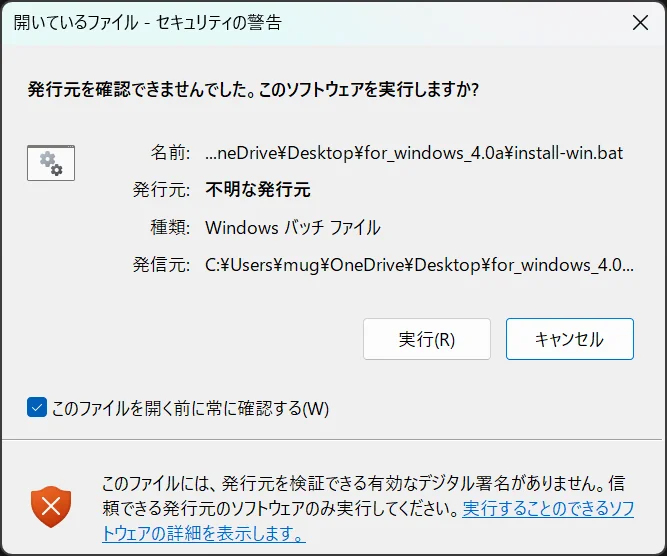
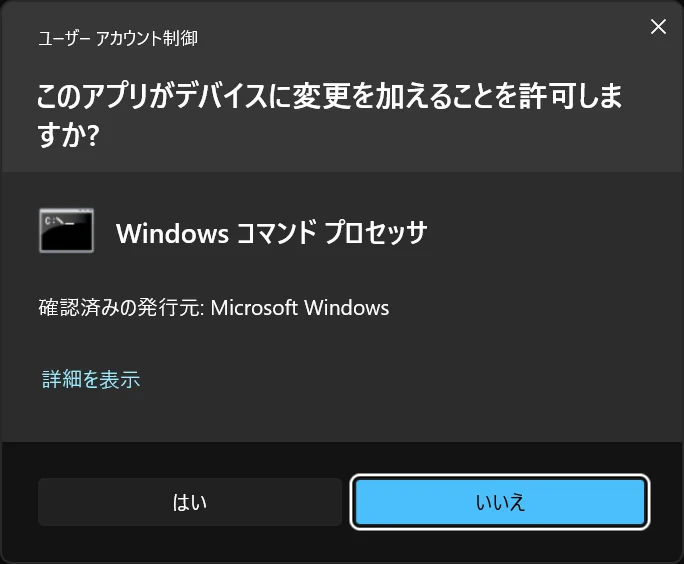
When the administrator permission confirmation dialog appears, select Yes.
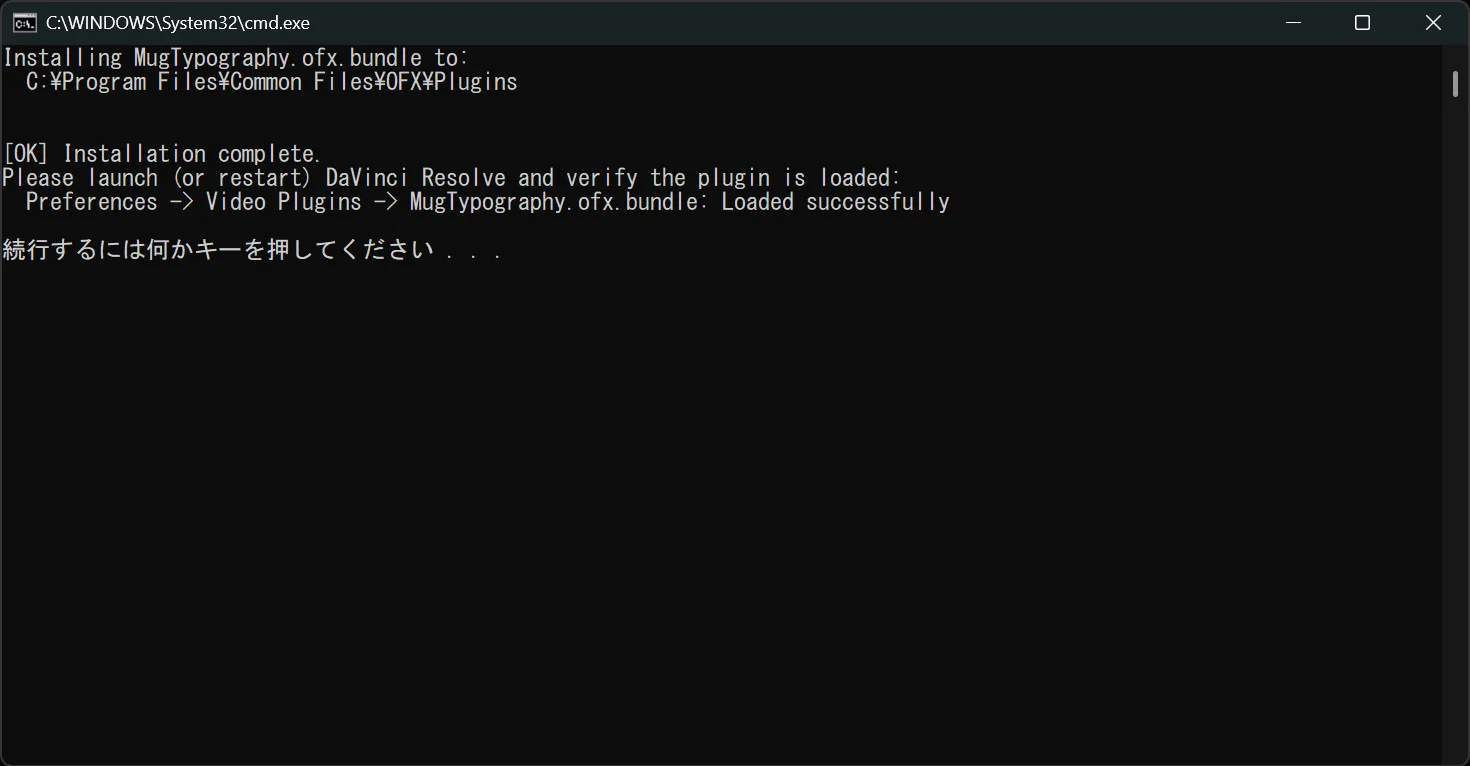
When the installation completion message appears, launch DaVinci Resolve.
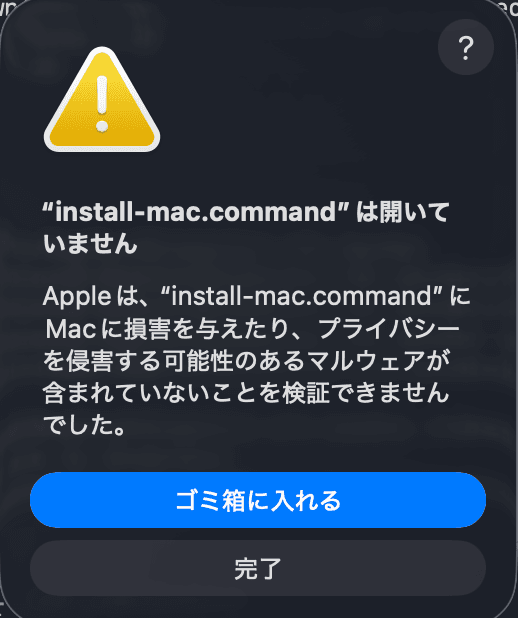
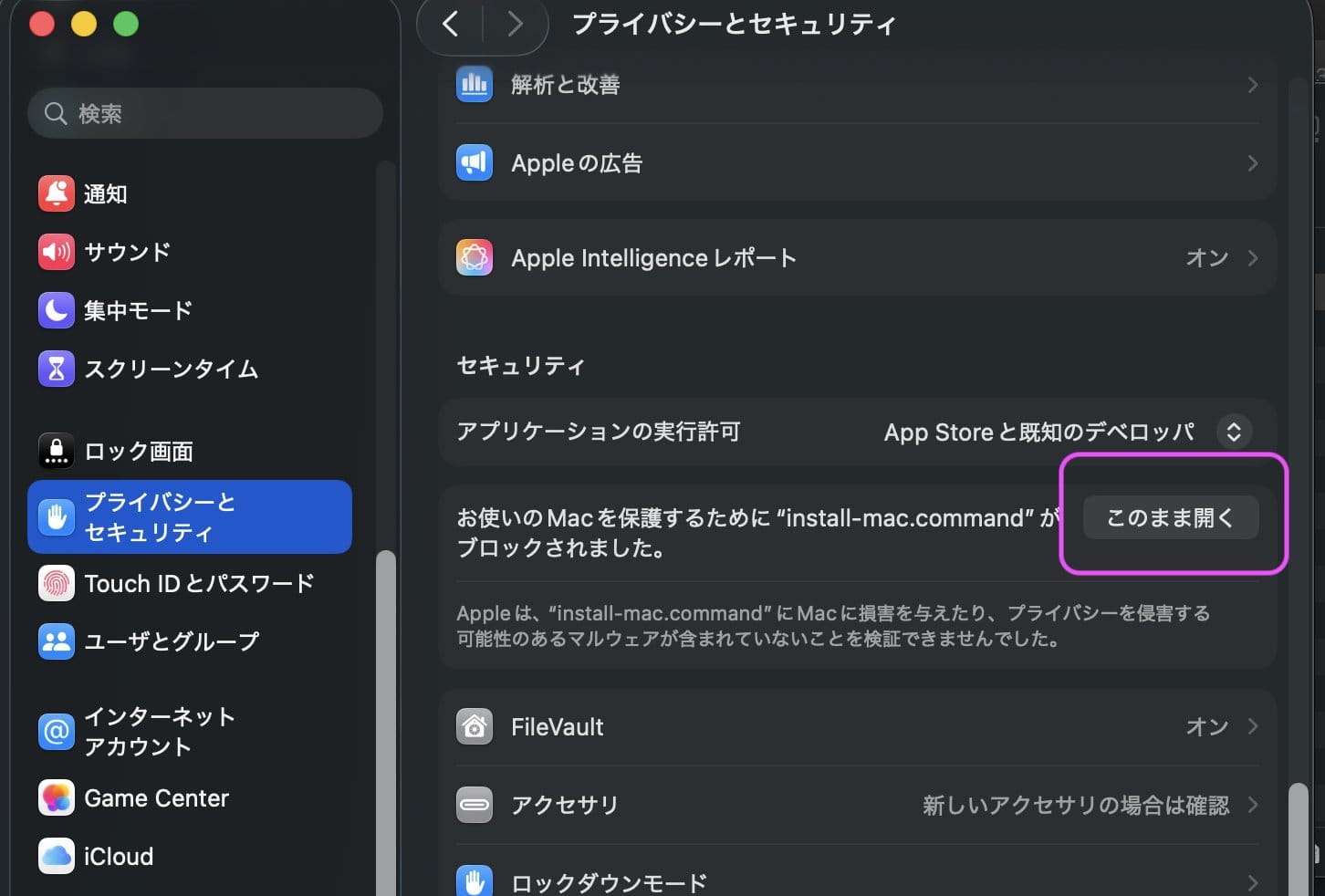
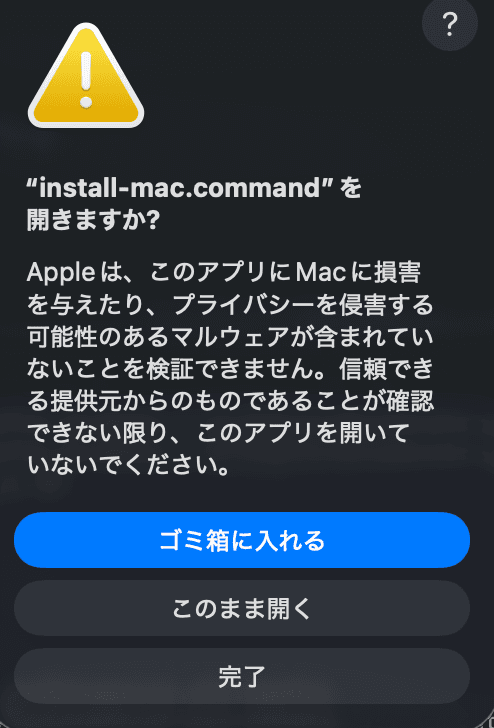
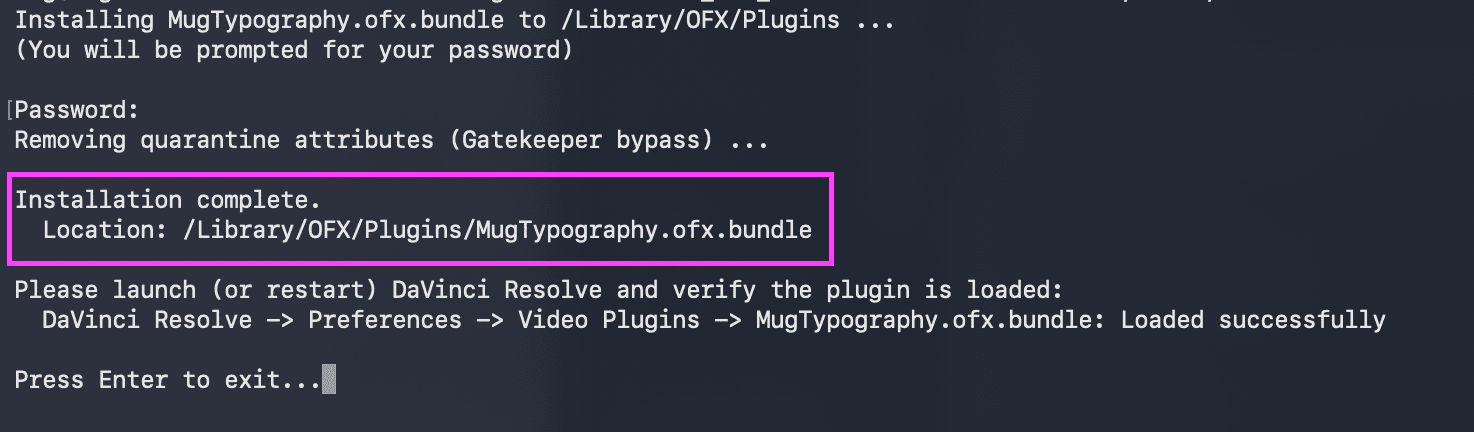
Verifying the Installation
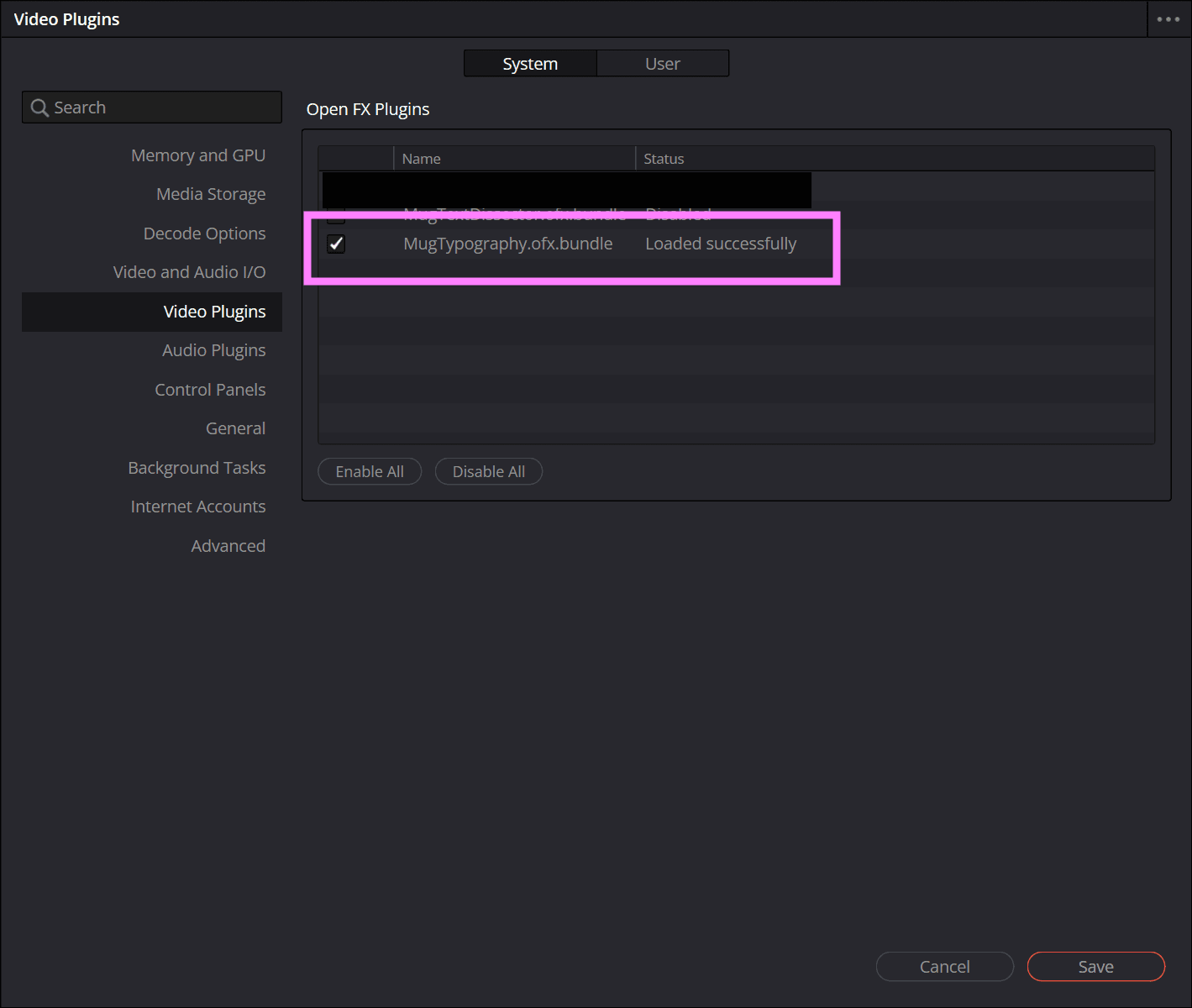
From the DaVinci Resolve menu, open DaVinci Resolve → Preferences → Video Plugins. Installation is complete if the status of MugTypography.ofx.bundle is Loaded successfully.