Interface Overview
Selection Mode
Selection Mode switches between the three levels described in "Core Concepts": Global, Character, and Part. With the 3D and Scripting presets, you can also select Camera mode to control the camera. Clicks and drags in the viewer act on the mode selected here.
| Parameter | Target Level | Description | Default Shortcut |
|---|---|---|---|
| Global | Global | Selects the entire text | WinAlt+Ctrl+AMacOption+Command+A |
| Character | Character | Selects individual characters | WinAlt+Ctrl+CMacOption+Command+C |
| Part | Part | Selects parts within characters (separate pieces such as dots and diacritics) | WinAlt+Ctrl+PMacOption+Command+PUnavailable in Lite / Scripting |
| Camera | Camera | Displays dedicated on-screen controls for operating the camera | WinAlt+Ctrl+MMacOption+Command+M3D / Scripting only |
Switch modes using Selection Mode at the top of the Inspector.
The Scripting preset does not show Character or Part mode; only Global and Camera are available. Control per-character and per-part values from a Lua script.
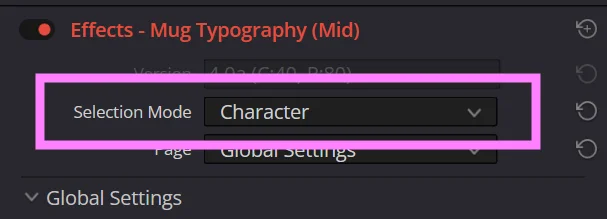
Selection Mode at the top of the Inspector (switches the editing level)
NOTE
Characters and parts excluded from the active output by Output Separation in Output Settings cannot be selected by clicking or marquee selection.
Viewer Controls
In the viewer, you can drag targets directly or use modifier keys and on-screen controls to transform and select them.
NOTE
An outline is drawn around each character in the Viewer. This is an on-screen interaction guide for selecting and dragging characters and parts (it is never included in the final rendered video). You can toggle it or change its color in Overlay Settings.
Moving
Click and drag a character or part to move it.
- Clicking an already selected target preserves the multiple selection and moves all selected targets together.
- Clicking a different target switches the selection to it.
Moving a character by clicking and dragging (a multiple selection moves together)
Adding or Removing Multiple Selections
In Character or Part mode, hold WinCtrl+AltMacCommand+Option and click a target to toggle the selection state of that character or part.
- Clicking an unselected target adds it to the current selection.
- Clicking a selected target removes it from the current selection.
- Clicking an empty area leaves the current selection unchanged.
Adding and removing characters from the selection with Ctrl+Alt (Command+Option) + click
Displaying Rotation, Scale, and Pivot Handles
Hold WinCtrlMacCommand and click an already selected target to display the rotation, scale, and pivot handles.
| Handle | Position | Action |
|---|---|---|
| Rotation handle | Circle extending from the pivot | Drag left or right to rotate |
| Scale handle | Rectangle extending from the pivot | Drag toward or away from the pivot to scale |
| Pivot handle | Cross at the center, where the rotation and scale handles begin | Drag to move the reference point for rotation and scaling |
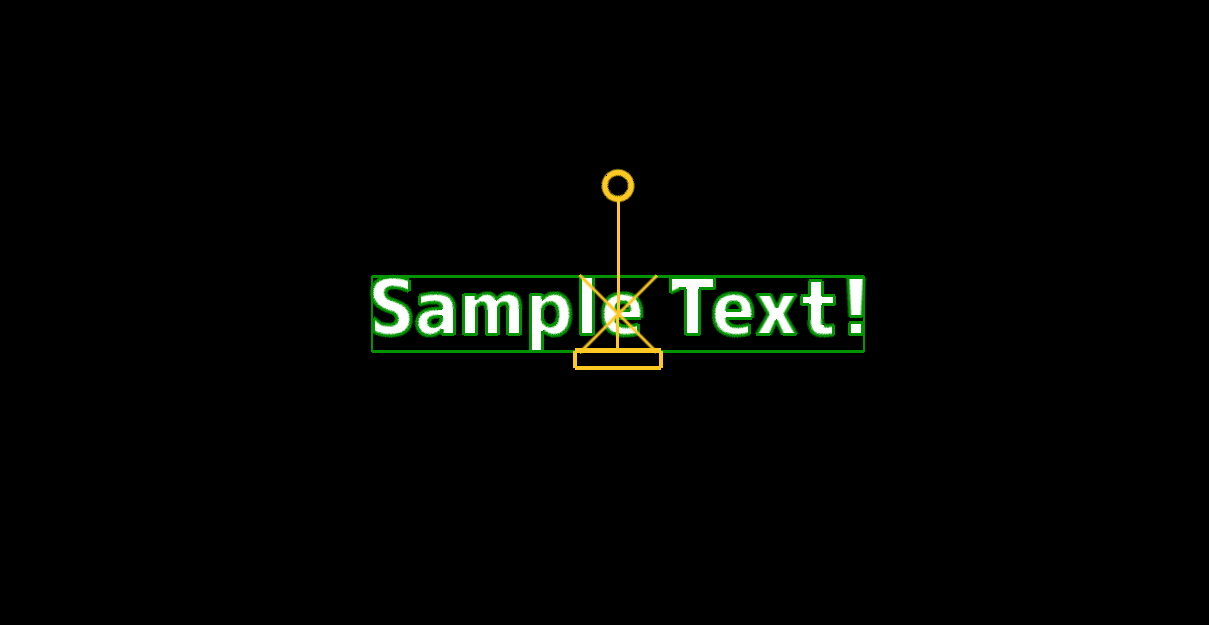
Rotation, scale, and pivot handles shown by Ctrl (Command) + clicking a selected target
NOTE
The handles appear only when you WinCtrlMacCommand + click an already selected target. They do not appear for an unselected target.
Stretch
Hold WinAltMacOption and drag an edge of the bounding box (top, bottom, left, or right) to change Stretch in that direction. This affects the selected targets (in 3D presets, Stretch is available only in Global mode).
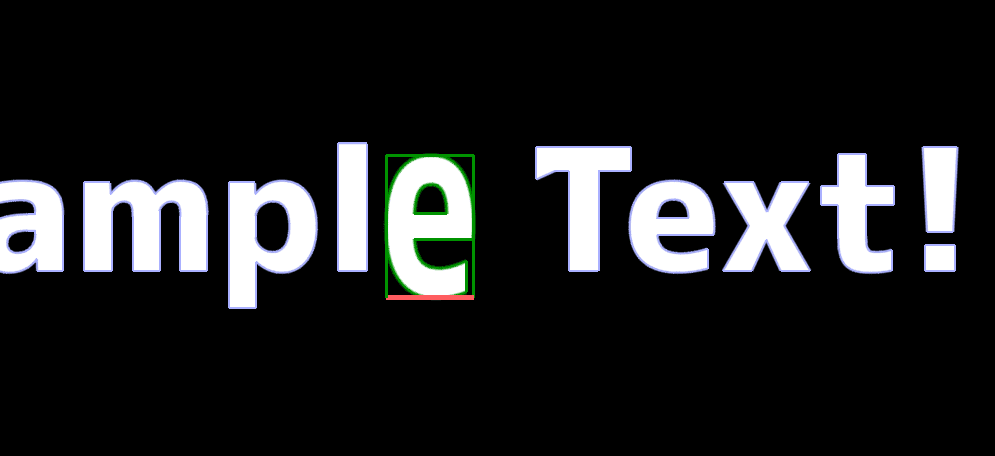
Changing Stretch by holding Alt (Option) and dragging an edge of the bounding box
Adjusting Tracking and Margins
Press WinAlt+↑/↓MacOption+↑/↓ to increase or decrease the spacing in 0.1 em (10% of the font size) increments.
| Mode | Target |
|---|---|
| Global | Tracking (global character spacing) |
| Character | Margin After for the selected characters |
| Part | Unavailable |
While WinAltMacOption is held, the active spacing indicator (Tracking for each character in Global mode, or Margin After for the selected characters in Character mode) is highlighted with Previewing Color whenever the value is non-zero.
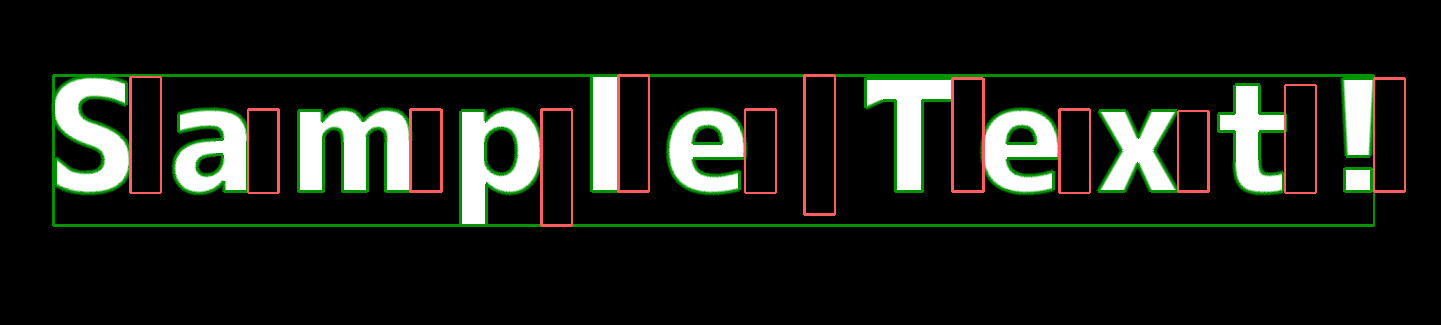
Tracking preview shown while holding Alt (Option) in Global mode
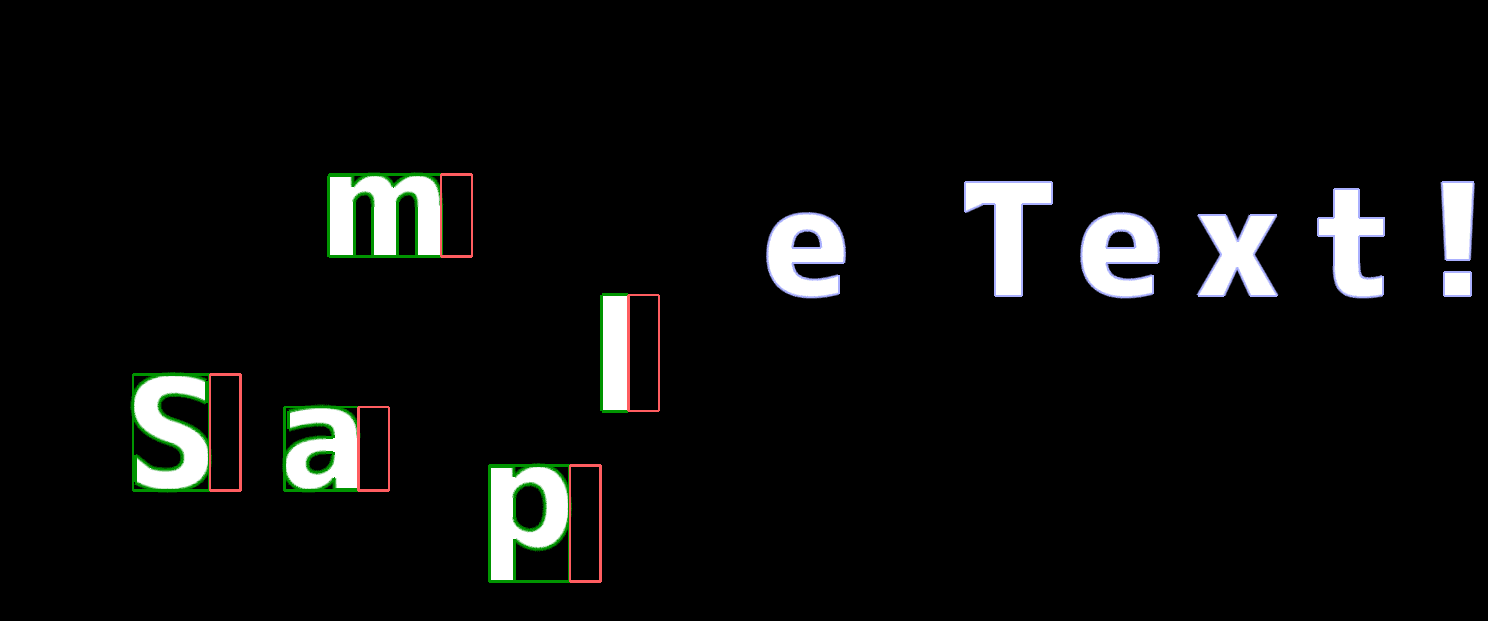
Margin After preview shown while holding Alt (Option) in Character mode
Marquee Selection
Drag through an empty area containing no characters or parts to display a selection rectangle and select all targets inside it.
While dragging, elements inside the selection rectangle are highlighted in real time with Selected Color; elements outside it are shown with Previewing Color.
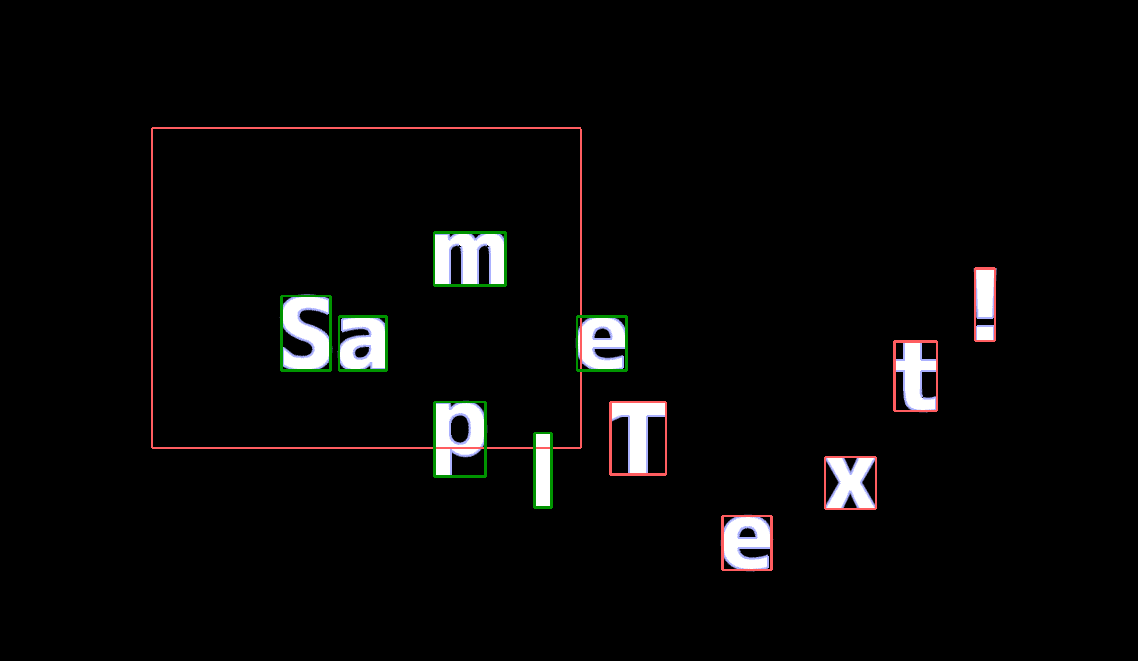
Marquee selection (elements inside the rectangle are shown with Selected Color; those outside with Previewing Color)
Camera Mode (3D / Scripting Presets)
Camera is added to Selection Mode in the 3D presets (Mug Typography 3D / Mug Typography Lite (3D)) and Mug Typography Scripting. Selecting it displays camera handles directly in the viewer so you can frame your shot without going back and forth to the Inspector.
Camera-mode handles (Orbit / Target Pad / Zoom / Perspective)
| Action | Result |
|---|---|
| Drag the Orbit handle | Changes camera Yaw/Pitch |
| WinAltMacOption + drag an empty area | Orbits the camera |
| Drag the Target Pad | Moves the camera target |
| Drag the Zoom handle left or right | Changes Camera Zoom |
| Drag the Perspective handle left or right | Changes the strength of perspective |
| Drag an empty area away from the controls | Changes Lens Shift |
| Hold Shift while dragging | Locks movement to the axis with the greater displacement |
See Camera Settings for details about each setting.