MUG TYPOGRAPHY MCP NEW
Let AI Build the Effect
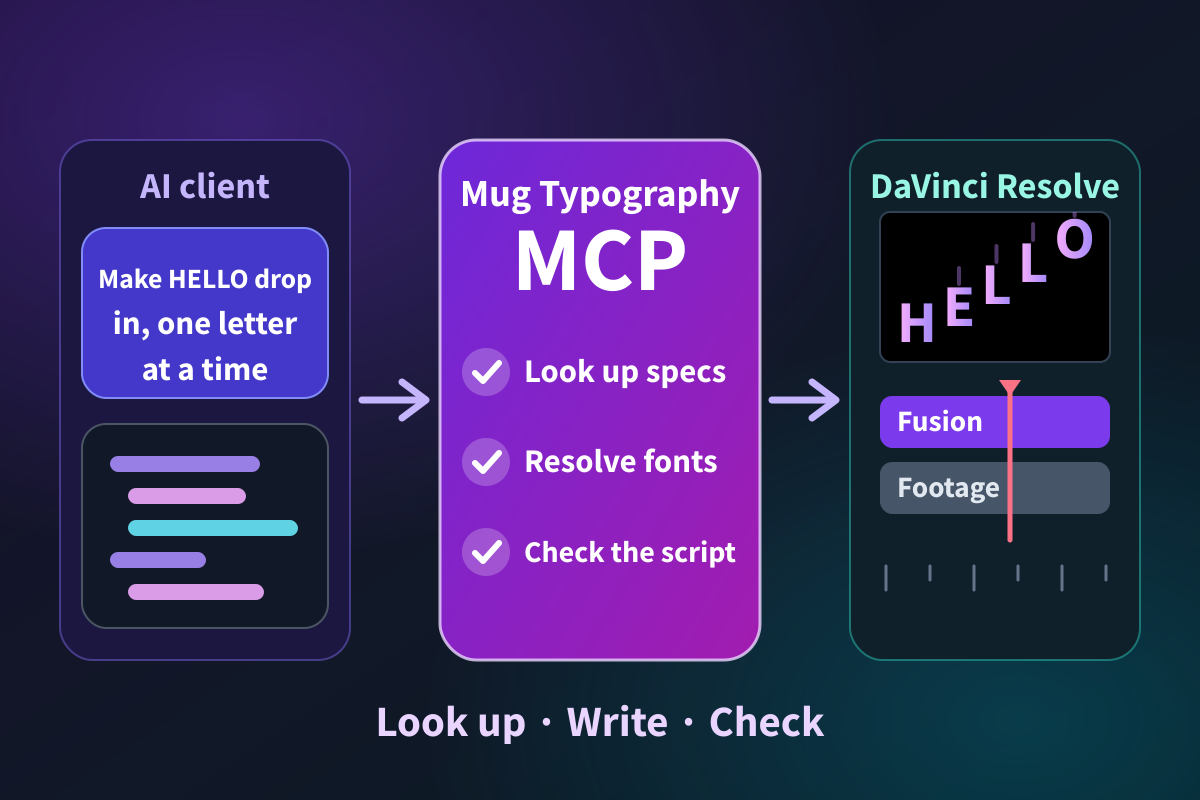
AI clients such as Claude and Codex can look up Mug Typography's features and Lua scripting API on their own, write a script, and test-run it before handing it to you. You no longer need to paste the reference manual into every chat, and you get working scripts with far fewer errors.
- The AI looks things up itself
- Checks the script it writes
- Six AI clients supported
How to Use
Download the MCP archive for your OS from the same BOOTH page as the plugin, extract it, and run the installer inside.
- Windows:
MugTypographyMCP-Setup.exe - macOS:
MugTypographyMCP.pkg
When installation finishes, it automatically registers itself with the supported AI clients it finds.
- Windows:
Your OS may show a security warning when you open the installer. If it does, proceed as follows:
- Windows: If "Windows protected your PC" appears, click More info, then click Run anyway.
- macOS: If macOS says it cannot verify the package, close the dialog and open System Settings > Privacy & Security. Scroll down and click Open Anyway next to
MugTypographyMCP.pkg(or Control-click the package and choose Open).
Restart your AI client, or reload its MCP servers.
Ask the AI for the effect you want.
Write a Mug Typography Lua script where the letters of "HELLO" drop in one by one from above and bounce.
What It Does
With Mug Typography MCP installed, your AI client can look up everything it needs about Mug Typography and test the scripts it writes on its own.
- Looks up documentation and samples: The AI reads the plugin's features, Inspector parameters, Lua scripting API, and bundled sample scripts whenever needed, so you do not have to paste the reference manual into your prompt every time.
- Resolves font names: It queries the exact font list available in the plugin, so fonts can be selected accurately by their display names.
- Verifies generated scripts: It runs the Lua script in the built-in simulator to check for runtime errors, off-screen characters, sudden frame-to-frame jumps, and parameter changes, and can render a single-frame preview image.
The preview image is a placement guide only. Always check the final look in DaVinci Resolve.
About Operating DaVinci Resolve
Mug Typography MCP does not control DaVinci Resolve directly. Copy the generated Lua script and load it into the plugin using Paste Script in the Inspector.
If you also use a DaVinci Resolve MCP server in your AI client, you can ask the AI to add the node and apply Script Text directly to the current timeline. If you only want a script, you do not need a Resolve MCP.
Requirements
- Windows 11 (64-bit), or macOS 13.3 or later (Apple Silicon only)
- DaVinci Resolve 21 with Mug Typography installed
- One of these AI clients: Claude Desktop, Codex, Cursor, VS Code (GitHub Copilot), Gemini CLI, Antigravity
Checking and Removing the Registration
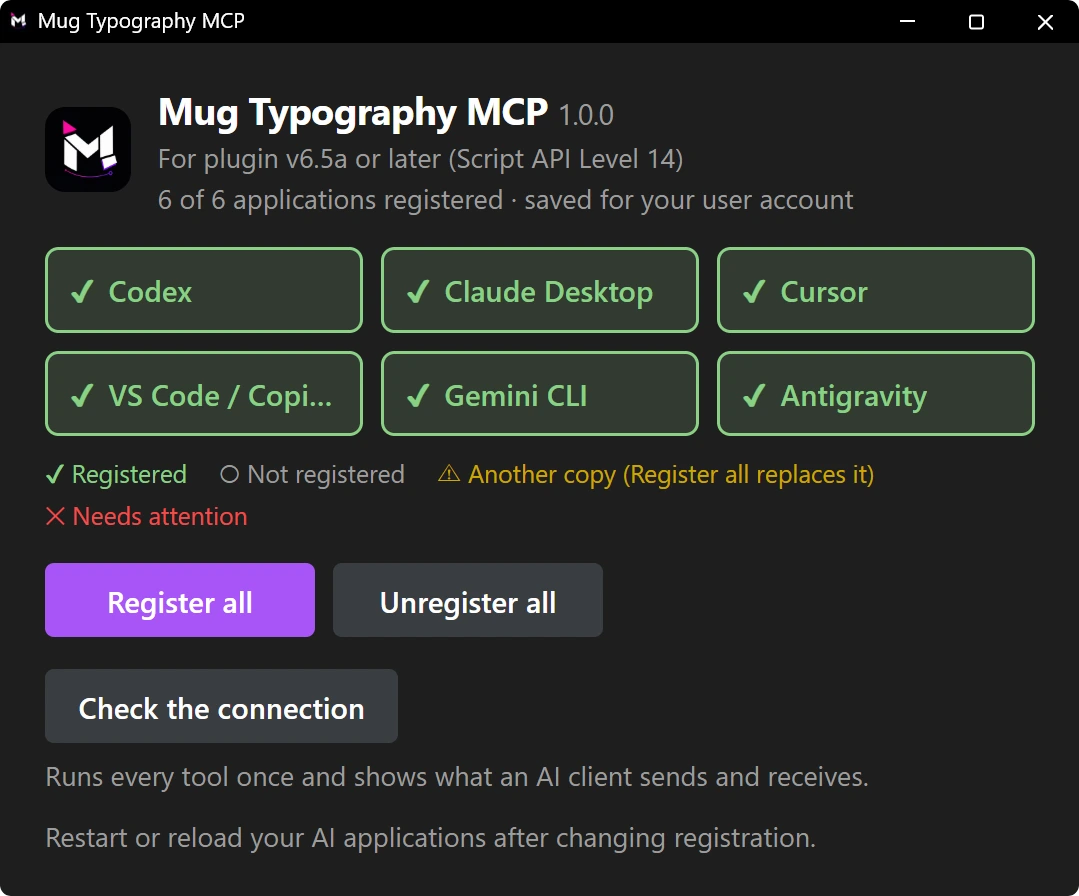
You can check the registration status in this window:
- Windows: Mug Typography > Mug Typography MCP in the Start menu
- macOS:
MugTypographyMCPin~/Applications(theApplicationsfolder inside your home folder)
The window shows the status of each supported AI client. Register all registers every client at once, and Unregister all removes them all. Check the connection calls every tool once and opens a report showing what the AI sends and what comes back.
Updating and Uninstalling
- Updating: Run the newer installer. It replaces the program and updates the registration.
- Uninstalling:
- Windows: Use Mug Typography > Uninstall Mug Typography MCP in the Start menu, or Settings > Apps. This also removes the registration from your AI clients.
- macOS: Open
MugTypographyMCPand click Unregister all to remove the registration, then move~/Applications/MugTypographyMCP.appto the Trash.
If It Does Not Work
- The AI does not use Mug Typography's features - Restart the AI client or reload its MCP servers. Check the connection in the registration window also verifies whether the tools can be called properly.
- The window shows "Another copy" - A copy installed in another folder is currently registered with an AI client. Click Register all to replace it with the current installation.