PARAMETER REFERENCE
Copy / Paste
Duplicate selected character or part settings and animations, or an entire effect instance, to speed up repetitive design work.
This page lets you copy and paste parameters (such as position, scale, and color) and keyframe animations from selected characters or parts to other characters or parts. Use it to quickly apply an appearance or motion adjusted in one place to other characters.
Selection Copy
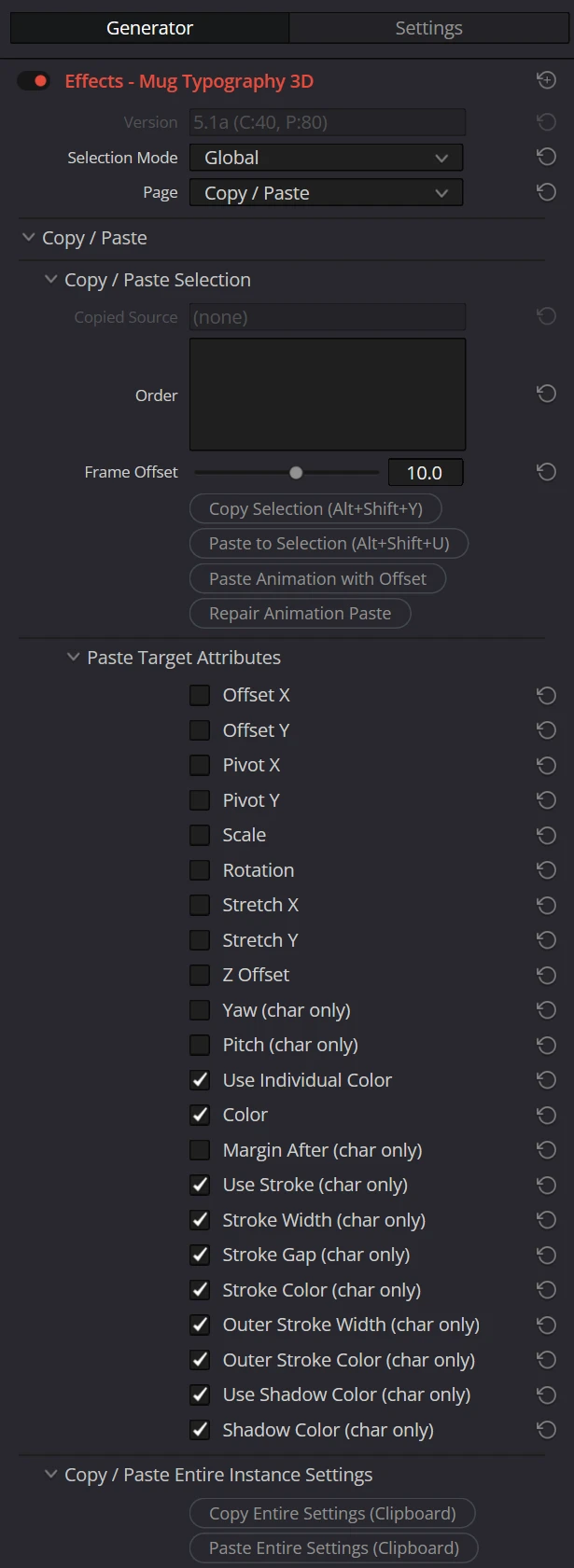
Stores the parameter values of the selected character or part as the copy source, then writes only the items checked in Paste Target Attributes to another selection.
| Parameter | Description | Default |
|---|---|---|
| Copy Selection WinAlt+Shift+YMacOption+Shift+Y | Stores the parameter values of the currently selected character or part as the copy source, preserving their values at that frame. | - |
| Paste to Selection WinAlt+Shift+UMacOption+Shift+U | Writes the checked parameters from the copy source to the current selection. Values are written at the frame where you paste them. | - |
| Copied Source | Displays the currently stored copy source and the frame number at which it was copied (for example, Char 3 (12f)). This field is read-only. | (none) |
NOTE
The source and destination do not have to be character-to-character or part-to-part. You can also paste across a mixed selection of characters and parts. Parameters that exist only on one type (for example, pasting the character-only Margin After to a part) are skipped automatically.
TIP
The copied values are those from the frame at which you clicked Copy Selection. This means you can keep the same character or part selected and paste at another frame to copy and paste its own settings from a different point in time. For example, you can duplicate the state of one frame at a later frame to hold an animation.
NOTE
The assigned shortcut keys can be customized in the preferences.json settings file (modifier keys such as Alt + Shift cannot be changed).
Selecting Paste Targets (Checkboxes)
Use the following checkboxes in Paste Target Attributes to turn individual paste items ON or OFF. Items marked (char only) apply only to characters and are ignored when pasting to parts. Both Selection Copy and Animation Paste refer to these checkbox states.
| Category | Items |
|---|---|
| Transform (OFF by default) | Offset X / Offset Y / Pivot X / Pivot Y / Scale / Rotation / Stretch X / Stretch Y |
| 3D Transform (OFF by default; 3D presets only) | Z Offset / Yaw (char only) / Pitch (char only) |
| Color (ON by default) | Use Individual Color / Color |
| Character Only - Margin (OFF by default) | Margin After (char only) |
| Character Only - Styling (ON by default) | Use Stroke (char only) / Stroke Width (char only) / Stroke Gap (char only) / Stroke Color (char only) / Outer Stroke Width (char only) / Outer Stroke Color (char only) / Use Shadow Color (char only) / Shadow Color (char only) |
NOTE
Offset, Pivot, and Stretch provide separate X and Y checkboxes, allowing operations such as pasting only the X position to align it.
NOTE
Yaw and Pitch are character-only parameters and are skipped automatically when pasting to parts. Z Offset can be pasted to both characters and parts.
Paste Animation with Offset
Paste Animation with Offset duplicates the copy source's complete keyframe animations across multiple characters or parts and staggers their timing. It lets you build a sequence in which characters begin moving one after another from a single source animation.
| Parameter | Description | Default |
|---|---|---|
| Order | The character/part order in which offsets accumulate. Uses the same syntax as Write On Manual Order. | Empty (logical index order) |
| Frame Offset | The cumulative frame difference between characters or parts. Positive values move later destinations forward in time; negative values move them backward. | 10.0 |
| Paste Animation with Offset | Copies the complete animations of the checked source parameters as they exist at paste time. Existing destination keys for those parameters are fully replaced. | - |
| Repair Animation Paste | Calculates the expected key times from the current copy source, selection, checked targets, and Frame Offset, then removes all other keys from the selected destinations. | - |
With the copy source as the reference (no shift), destinations arranged by Order receive cumulative delays of 1×, 2×, ... the Frame Offset. The syntax matches Write On Manual Order: characters, parts, and ranges can be written as c3, c1, c2 or p2-p5. Unlisted destinations follow in logical index order, and leaving the field empty keeps every destination in logical index order. For example, a Frame Offset of 3 delays each successive destination by three frames. A value of -3 staggers them in the opposite time direction.
WARNING
The Fusion page in DaVinci Resolve does not support direct animation copying by OFX plugins. The plugin therefore simulates the same result by reading the source keyframes and setting them individually on each destination. Because of this DaVinci Resolve limitation, the operation may take longer than it does on the Edit page, and an extra keyframe with the same value may be created at the current playhead position. These behaviors are not caused by a defect in the plugin's offset calculation or copy processing.
When copying color with Paste Animation with Offset on the Fusion page, set keyframes at the same times on all R, G, B, and A channels. Key times that exist on only some color channels may not be exposed through Fusion's OFX interface and therefore may not be copied.
After pasting, wait a few seconds for the keyframes to settle, then run Repair Animation Paste without changing the selection or checked targets: it removes keyframes at times not expected from the current copy source, selection, checked targets, and Frame Offset.
WARNING
Repair Animation Paste treats the current page state as authoritative and deletes keyframes. If you change the source animation, selection, checked targets, or Frame Offset after pasting, keys not included in the updated settings become repair targets.
IMPORTANT
OFX cannot copy one axis of an animated 2D parameter independently. Enabling either X or Y for Offset, Pivot, or Stretch copies both animated axes. Regular Paste uses the values captured at copy time, while Animation Paste reads the source animation at paste time.
Use Individual Color, Use Stroke, and Use Shadow Color are non-animated enable flags, but including them in Paste Animation with Offset matches their ON/OFF states to the source.
IMPORTANT
Animation Paste copies only parameters whose checkbox is enabled, whose source has at least one keyframe, and which exist on both the source and destination. Nothing changes if no parameter meets all of these conditions or if the copy source is the only selected destination.
On the Fusion page in DaVinci Resolve, the OFX warning dialog that reports the absence of eligible animation is not displayed, so the button may appear to do nothing. In that case, check the enabled paste targets, the source keyframes, and the destination selection.
Copying an Entire Instance
The Copy / Paste Entire Instance Settings group lets you copy all parameters from the current effect instance to the operating system clipboard as JSON and paste them into another instance.
| Parameter | Description |
|---|---|
| Copy Entire Settings (Clipboard) | Copies all parameters for the instance, including the current frame's settings, as JSON text. |
| Paste Entire Settings (Clipboard) | Applies the JSON on the clipboard to the current instance. |
TIP
This is useful, for example, when moving a design that includes 3D settings to another clip. After pasting, check the text, preset limits, and output settings.
ReferenceShow the full Inspector on this page