PARAMETER REFERENCE
Output Settings
Separate characters or parts into outputs, then control their visible range and reveal order for compositing and Write On.
Isolate specific characters or parts into separate outputs, animate reveals with Write On, or adjust edge rendering quality. By creating instanced copies of a node and outputting different characters or parts on a transparent background from each one, you can apply separate effects to individual letters and composite them back together.
Parameters
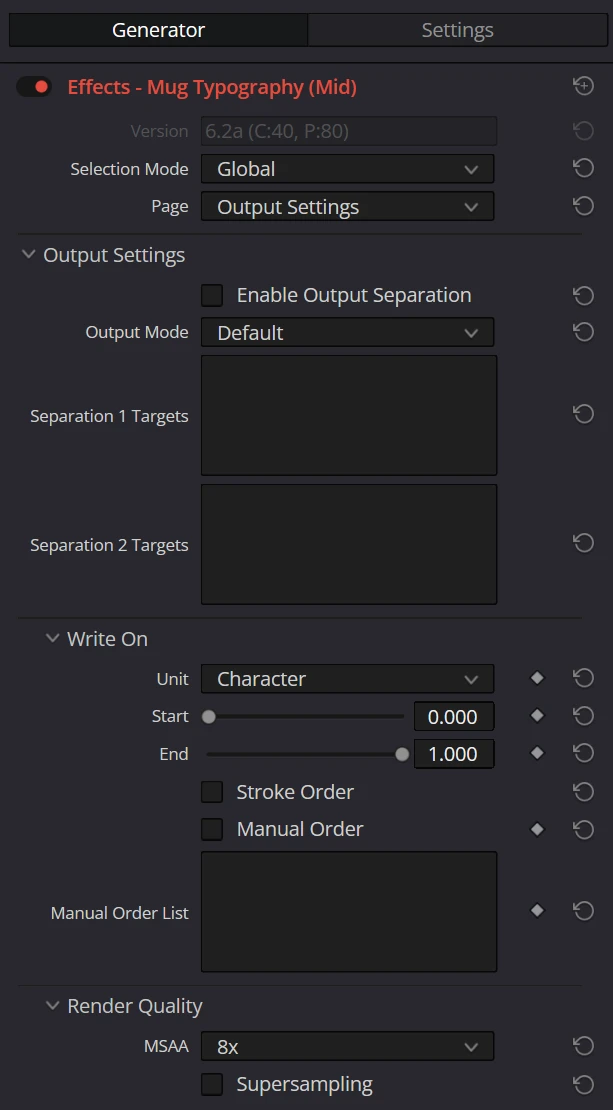
| Parameter | Description | Default |
|---|---|---|
| Enable Output Separation | Enables the output separation feature. The parameters below are always visible, but Output Mode only takes effect while this is ON. | OFF |
| Output Mode | Specifies how the separation targets are rendered. Select from the following three: · Default: Renders only the parts not included in either Separation 1 or Separation 2 targets (bounding box background is also rendered). · Separation 1 Only: Renders only the parts specified in Separation 1 Targets (bounding box background is not rendered). · Separation 2 Only: Renders only the parts specified in Separation 2 Targets (bounding box background is not rendered). | Default |
| Separation 1 Targets | A text input field for specifying the characters/parts to include in the first separation group. For the notation, see "Targets Format" below. If left empty, this separation group contains nothing (i.e. the group has no targets). | (empty) |
| Separation 2 Targets | A text input field for specifying the characters/parts to include in the second separation group. Uses the same format as Separation 1 Targets (an empty field contains nothing). | (empty) |
NOTE
Morph Animation and Output Separation are mutually exclusive. When both are enabled, Morph takes priority, and Output Mode and Separation 1 / 2 Targets do not affect rendering.
IMPORTANT
When duplicating an instanced node on the Fusion page for output separation, deinstance Output Mode after duplication. Then set one node to Default and the other to Separation 1 Only or Separation 2 Only. If it remains instanced, Output Mode changes on both nodes together.
IMPORTANT
For separation targets (Separation 1 / 2 Targets), an empty field means the group contains nothing (no targets). Note that this is the opposite of the Targets field for the Path Deformation / Hand Drawn effects described later, where an empty field means everything is targeted.
TIP
Workflow Example
- Copy the effect node to create three instances.
- On the first node, turn Enable Output Separation ON, set Output Mode to
Default, specifyc1in Separation 1 Targets andc2in Separation 2 Targets (renders everything except the 1st and 2nd characters). - On the second node, turn Enable Output Separation ON, set Output Mode to
Separation 1 Only, and specifyc1in Separation 1 Targets (renders only the 1st character). - On the third node, turn Enable Output Separation ON, set Output Mode to
Separation 2 Only, and specifyc2in Separation 2 Targets (renders only the 2nd character). - Apply different effects to each node and merge them together to create animations where each character has its own distinct effect.
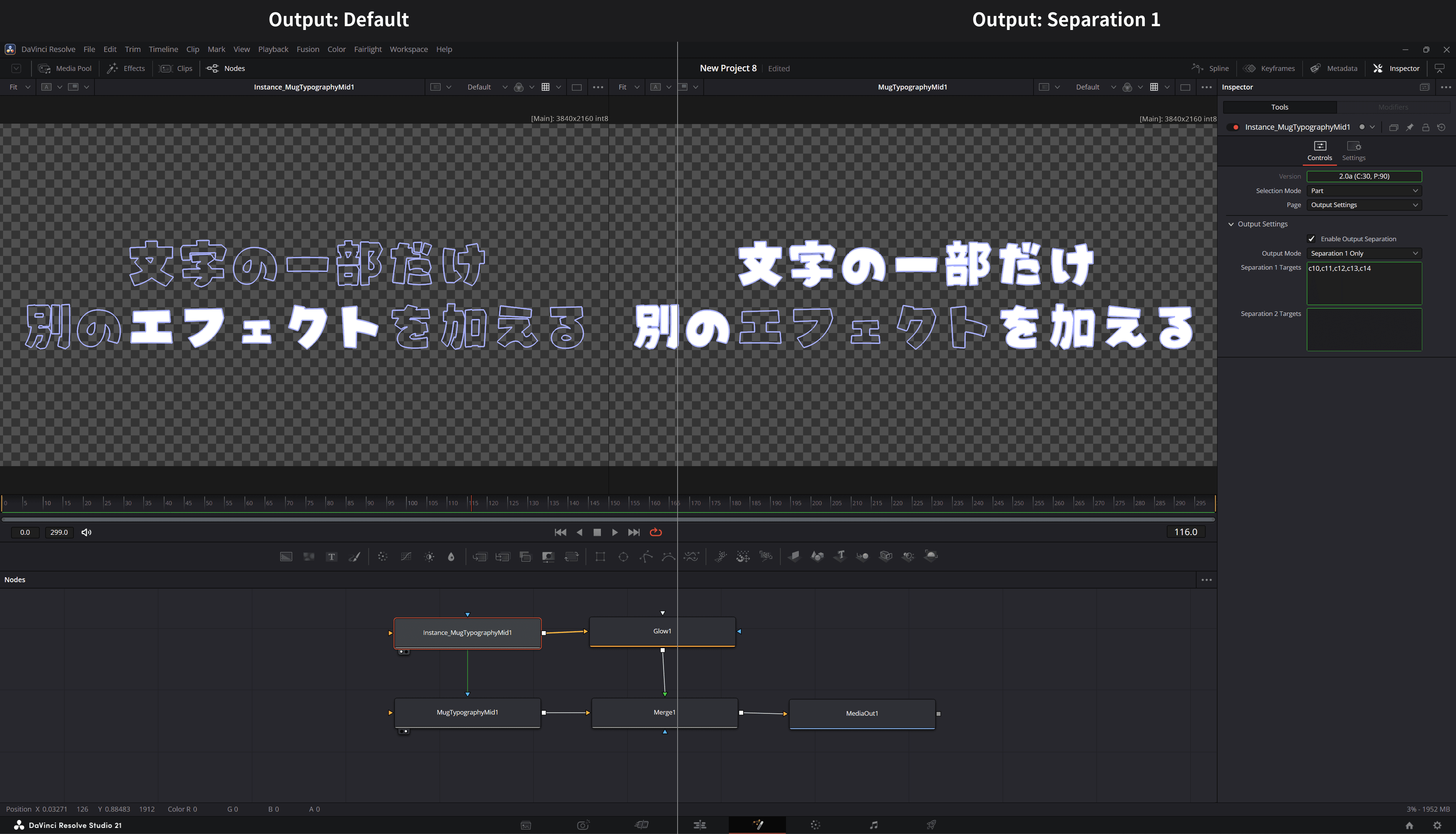 (Output separation setup example. Left: Output Mode = Separation 1 Only, Right: Output Mode = Default)
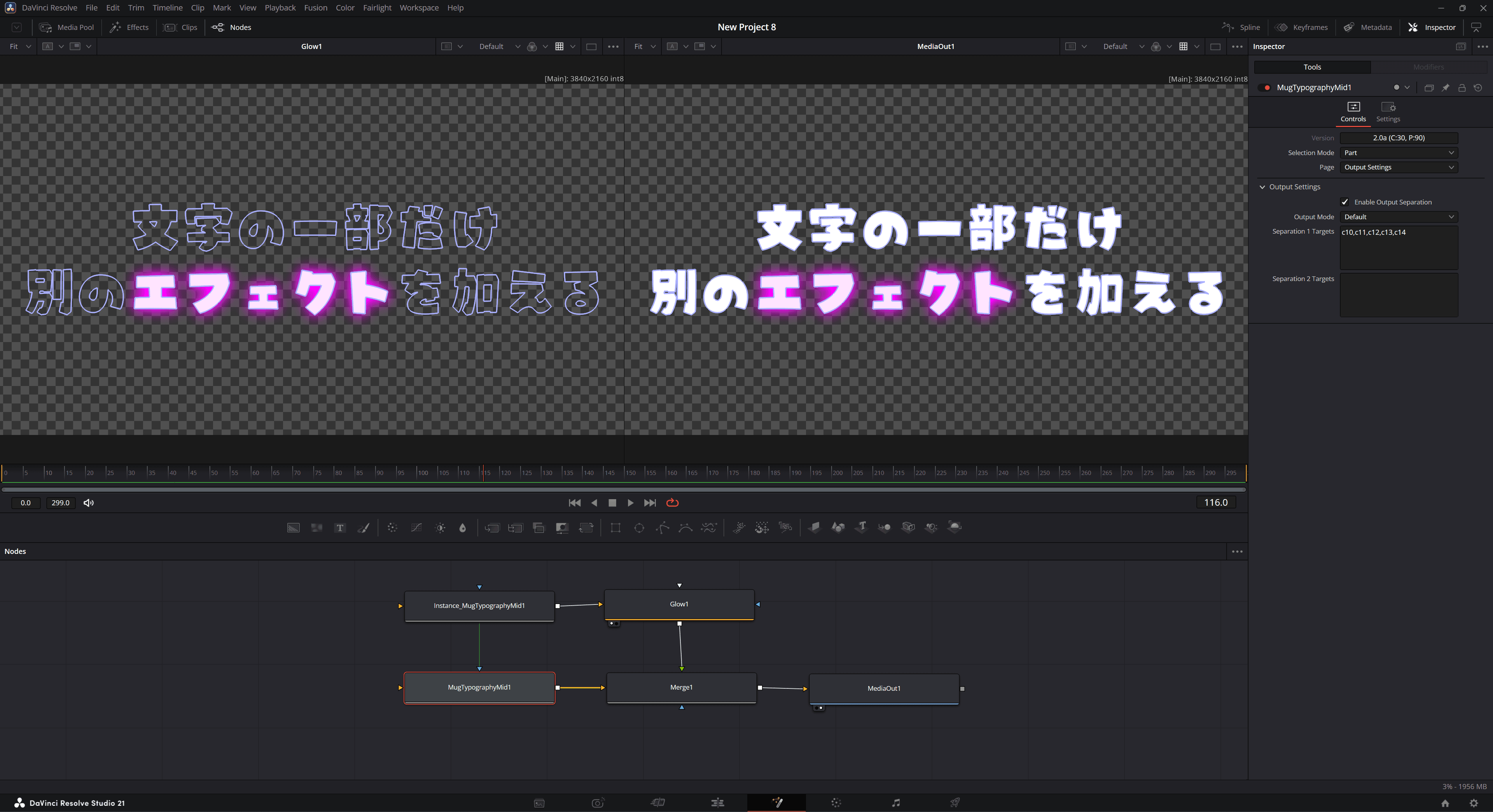 (Final composite result. Left: Separation 1 Only with effect applied, Right: Final Composite)
TIP
Using a different font per output
To use a different font on each node you split out with Output Separation, deinstance both Font and Font Identity (found just below it) in Text Settings together. These two parameters work together to preserve the current font, so deinstancing only one of them will not restore the correct font. Once deinstanced, you can pick an independent Font on each node.
Write On (Reveal Filter)
Write On is a filter that progressively reveals or hides the characters or parts of your text, from beginning to end.
By keyframing the Start and End parameters on the timeline, you can easily create a "handwriting" animation where characters appear one by one.
| Parameter | Description | Default |
|---|---|---|
| Unit | Selects the unit for the filter. Animatable. · Character: Filters by character. Only characters within the Start-End range are rendered. · Part: Filters by part. Combine with Stroke Order to reveal parts in an order close to the writing order. | Character |
| Start | Sets the start of the visible range as a fraction from 0.0 (beginning) to 1.0 (end). Animatable. | 0.0 |
| End | Sets the end of the visible range as a fraction from 0.0 (beginning) to 1.0 (end). Animatable. | 1.0 |
| Stroke Order | When ON, reorders each character's parts so they reveal in a natural-looking order. Especially effective when Unit is Part - parts appear in roughly stroke-writing order, producing a write-on effect. Not animatable. | OFF |
| Manual Order | When ON, the characters/parts listed in the Manual Order List are revealed and drawn first, in the order listed. Anything not listed follows afterwards in the normal order. Animatable. | OFF |
| Manual Order List | A text field (multi-line) listing characters/parts in the order they should reveal and draw. Uses the same syntax as the "Targets Format": c<n> (character), p<n> (part), and ranges such as c1-c3 (note: since this expresses an order, the exclusion prefix ! is not supported). If the same part appears more than once, its first occurrence wins. Animatable. | (empty) |
Specifying Reveal Order Manually
Turn on Manual Order to specify the order in which characters or parts appear:
c3 c1 c2In the example above, character 3 appears first, followed by character 1 and character 2, and any remaining characters or parts follow after them. Ranges such as c1-c3 and p2-p5 are also supported.
In 2D, the specified order also controls painting. In 3D, each part's depth remains primary and the specified order controls painting only among parts at the same depth. The specified order controls Write On reveal order in both 2D and 3D.

NOTE
When both Start and End are at their default values (Start = 0.0, End = 1.0), the Write On filter is inactive (everything is shown).
NOTE
Morph Animation and Write On are mutually exclusive. When both are enabled, Morph takes priority and Write On, Stroke Order, and Manual Order do not affect rendering.
IMPORTANT
About the Stroke Order reveal sequence
The reordering done by Stroke Order does not reproduce the actual, correct writing order of a character. It uses an internal algorithm to estimate a plausible order from the positions of the parts, so it may differ from the real stroke order. Also, how a character splits into parts depends on the font's data structure (see Core Concepts), so the reveal order can change when you switch fonts, even for the same character. Preview with your actual font to confirm the order is what you intended.
Render Quality
The group that sets how smooth character edges are.
| Parameter | Description | Default |
|---|---|---|
| MSAA | The number of samples used to anti-alias edges. It is fixed at 8x and cannot be changed. | 8x |
| Supersampling Experimental | When ON, the text is drawn at twice the output resolution and then scaled down, which makes edges and thin lines smoother. Set per clip. | OFF |
A magnified view of a character edge. With it ON, the stair-step jaggies along the edge are reduced.
| Supersampling OFF | Supersampling ON |
|---|---|
 |  |
WARNING
Supersampling is an experimental feature. Its quality and behavior may change in future versions.
IMPORTANT
Turning Supersampling ON uses much more GPU memory: roughly 2 GiB more for 4K output (it varies with the GPU and the content). If your GPU memory is tight, turn it ON only when you need it, such as for the final render.
NOTE
When twice the output resolution exceeds the largest image the GPU can handle (such as outputs beyond 8K), Supersampling does not apply and the text is drawn at the normal resolution.
Targets Format
The Separation 1 / 2 Targets of Output Separation and the Targets field of the Path Deformation and Hand Drawn effects all use the same notation to specify the target characters/parts.
List one or more tokens (units of specification) separated by commas (,) or spaces. Each token can use the following notations (case-insensitive - c1 and C1 are the same):
| Notation | Meaning | Example |
|---|---|---|
c<n> | Character unit. Specifies all parts that compose the n-th character (1-based). | c1 = all parts of the 1st character |
p<n> | Part unit. Specifies the n-th part globally (1-based). | p5 = the 5th part |
<n> | No prefix. Same as p<n>; specifies the n-th part. | 15 = the 15th part (same as p15) |
<a>-<b> | Range. Specifies everything from a to b, inclusive. See below for details. | c1-c3, p2-p5, 2-5 |
!<token> | Negation (exclusion). Prefixing a token with ! excludes the targets it would otherwise select. See below. | !c2, !p3, !2-5 |
Details of range specification (-)
- Both endpoints of a range must be the same kind (character-to-character or part-to-part). Mixed-kind ranges (e.g.
c1-p3) are invalid and ignored. - You only need to add a prefix to one endpoint. The endpoint without a prefix inherits the kind of the other endpoint.
c1-3is the same asc1-c3(characters 1-3). You don't have to write outc1-c3in full.1-3is the same asp1-p3(parts 1-3).- Inheritance works in reversed order too:
c3-1becomesc3-c1→ sorted toc1-c3.
- Even if the start and end are reversed (e.g.
c3-c1), the range is automatically sorted into ascending order.
Details of negation (!)
- A token prefixed with
!removes its targets from the result. It works with ranges and character units too (e.g.!c2,!p3-p5). - Token order does not matter. All inclusions and exclusions are accumulated, and then exclusion wins (if the same part is both included and excluded, it is dropped from the targets).
- Negation is handy in combination with each effect's "empty behavior" (see below).
Empty-field behavior (important - opposite per feature)
What an empty field means differs (is the opposite) depending on the feature.
| Feature | Meaning when empty |
|---|---|
| Path Deformation / Hand Drawn effects (Targets) | All characters/parts are targeted. |
| Output Separation (Separation 1 / 2 Targets) | Nothing is included (no targets). |
Because of this, for the Path Deformation / Hand Drawn effects, if you want to target "everything except specific parts," it is convenient to write only a negation. For example, entering !c1 targets everything except the 1st character (starting from "empty = all," with just the 1st character excluded).
Examples
| Input | Interpretation |
|---|---|
c1, p12, 15 | All parts of the 1st character, the 12th part, and the 15th part |
c1-c3 | All parts of characters 1-3 |
c1-3 | Same as c1-c3 (characters 1-3). The prefix on the end can be omitted |
p2-p5 / 2-5 | Parts 2-5 (both are the same) |
c1-5 !c3 | All of characters 1-5 except character 3 |
!p3 (on a deformation effect) | All parts except the 3rd part |
NOTE
Invalid specifications are silently ignored (no error is raised): values <= 0, indices out of range, mixed-kind ranges, and so on.
ReferenceShow the full Inspector on this page